

Subway Surfers on PC and Chromebook
Subway Surfers can be played on a PC through a compatible Android emulator, while supported Chromebooks can run the Android version through Google Play. A larger screen can make the game easier to view, and an emulator may let you map swipe actions to keyboard controls. The setup is different from installing a typical Windows or Mac game because the PC method runs the mobile version rather than a native desktop release.

Before starting, check which device you have and choose the method that fits it. Windows and Mac users generally need a compatible Android emulator, while Chromebook users should first check whether Google Play and Android apps are supported on their device. Using a recognised installation route can also help you avoid unnecessary extensions, unknown downloads, and unofficial game packages.
Ways to Run Subway Surfers on PC

There are several ways to access Subway Surfers on a computer, but each option provides a different experience.
| Method | Best For | How It Works | Main Consideration |
|---|---|---|---|
| Android emulator | Windows and Mac | Runs the Android version on a computer | Requires emulator installation and compatible hardware |
| Browser version | Quick browser play | Runs through a supported web platform | Features and saved progress can vary |
| Chromebook + Google Play | Supported Chromebooks | Runs the Android app through ChromeOS | Availability depends on device compatibility |
| Chrome extension | Browser-based access | Adds a third-party extension to Chrome | Developer and permissions should be checked |
For most PC users who want the mobile version on a larger screen, a recognised Android emulator is the most direct approach. A browser version can be more convenient when a legitimate platform provides one, while Chromebook users should first check Google Play and Android app support. Chrome extensions are different from the official game, so a Chrome Web Store listing should not automatically be treated as an official Subway Surfers release.
PC and Mac Compatibility Requirements
The requirements for running Subway Surfers on a computer depend mainly on the Android emulator you choose. Because the game is designed as a mobile app, Windows and Mac users should check the emulator’s operating-system and hardware requirements before installation.
| Requirement | Windows PC | Mac |
|---|---|---|
| Operating system | Depends on the emulator | Depends on the emulator and Mac hardware |
| Processor | Compatible Intel or AMD CPU | Compatible Intel or Apple Silicon Mac, depending on emulator |
| RAM | Enough memory for the emulator and game | Enough memory for the emulator and game |
| Storage | Space for emulator, game, and temporary files | Space for emulator, game, and temporary files |
| Graphics | Compatible graphics support | Compatible graphics support |
| Virtualization | May be required or recommended | Depends on the emulator |
There is no single specification that applies to every emulator. Requirements can differ between platforms and may change when the emulator is updated. Before installing, check the current requirements published by the emulator you plan to use and keep additional free storage available for installation and updates.
A computer that meets minimum requirements may provide a different experience from one with more available memory or stronger graphics hardware. If the game feels slow or stutters, check the emulator’s performance settings and the resources available on your computer.
Chromebook Installation Paths
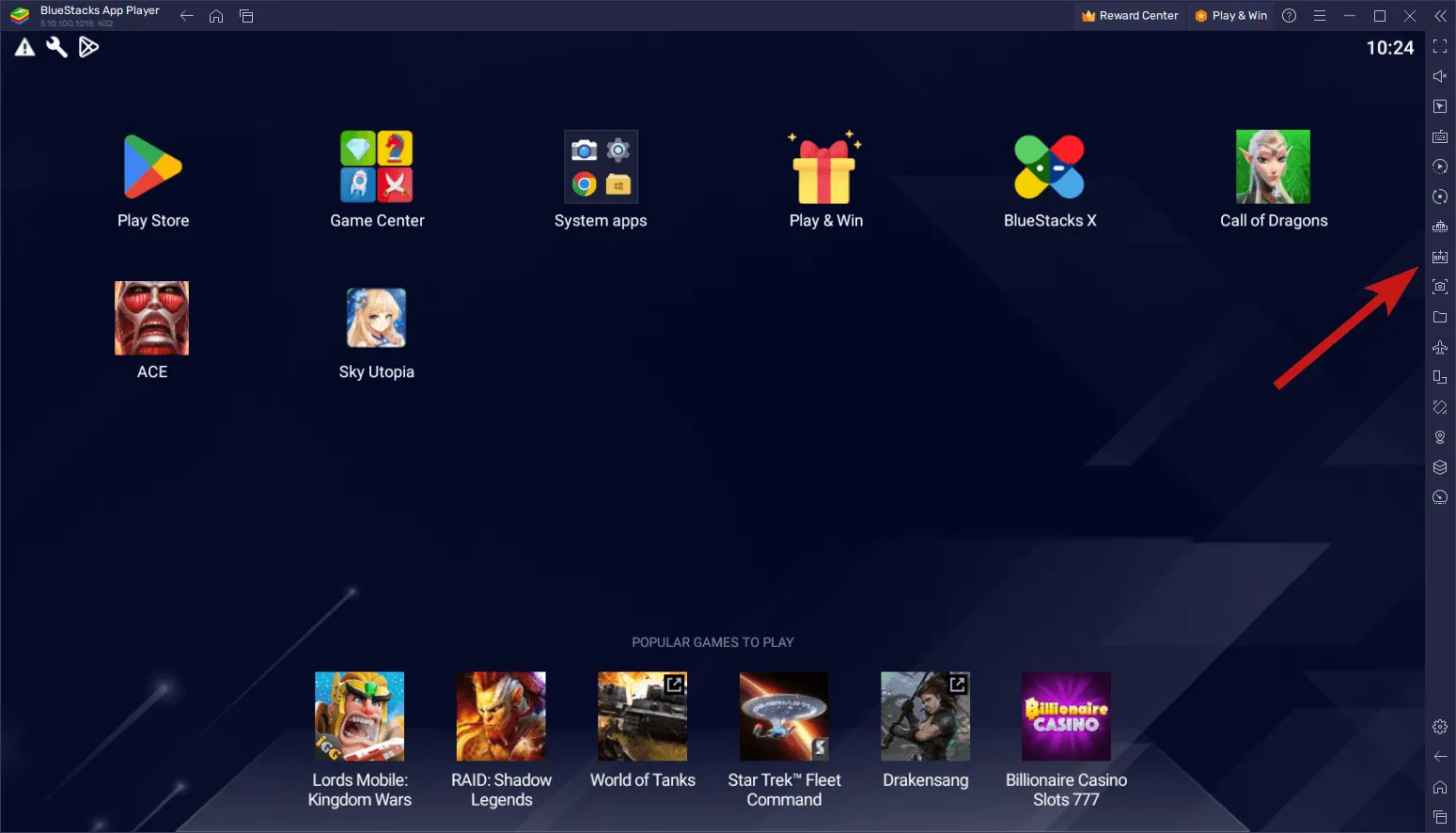
Chromebook users have several possible ways to access Subway Surfers, but the most suitable option depends on whether the device supports Android apps and Google Play.
- Google Play: On a Chromebook that supports Android apps, open Google Play, search for Subway Surfers, verify the listing, and install the game.
- Browser play: If you do not want to install the Android app, a legitimate browser-based version can be used when one is available.
- Chrome Web Store: Subway Surfers-related extensions may appear in the Chrome Web Store, but these are separate from the official Android app. Check the developer, permissions, and description before installing an extension.
- Managed Chromebook: If the Chromebook belongs to a school or workplace, app installation may be restricted by the administrator. Follow the device’s policies rather than attempting to bypass them.
Google Play is the clearest installation route when your Chromebook supports Android apps. If Subway Surfers does not appear or cannot be installed, check the Chromebook’s compatibility and administrator settings before trying an unfamiliar download or extension.
PC Input, Display, and Performance Setup

- Keyboard controls: Use the emulator’s key-mapping controls to assign Subway Surfers swipe actions to keyboard keys. Choose keys that are comfortable to reach during a run.
- Fullscreen mode: Use fullscreen for a larger viewing area. If the game looks stretched or cropped, switch to a windowed layout and adjust the emulator’s display settings.
- Resolution: Start with a resolution your computer can handle comfortably. Higher settings can require more system resources.
- Graphics settings: If the game runs smoothly, the emulator’s default configuration may be enough. If you notice stuttering or slowdowns, lowering graphics-related settings may help.
- Frame rate: Use a stable frame-rate setting supported by your emulator and hardware rather than automatically choosing the highest option.
- Performance resources: Close unnecessary background applications if the emulator is using a large amount of CPU or memory.
- Mouse and touch input: Subway Surfers is designed around swipe-based controls, so mouse input may feel less natural than keyboard mapping. Use the method your emulator handles most reliably.
- Display scaling: If interface elements appear too small or large, adjust the emulator’s display scaling.
- Battery and heat: Long emulator sessions can increase power use and heat on laptops. Keep the device ventilated and use a stable power source for longer sessions.
The best setup is not necessarily the highest graphics or frame-rate configuration. A comfortable display, responsive controls, and stable performance are more useful for an endless runner where quick reactions matter.
Save Data and Account Limitations
Save data can behave differently when you play Subway Surfers on a PC, Chromebook, or mobile device. When the game runs through an Android emulator, it is still the mobile version inside that emulator, so progress and account behaviour can depend on the game’s current sign-in and synchronisation options. A browser version may use a separate save system, so progress made there should not automatically be assumed to transfer to the mobile app or emulator.
For a more reliable experience, use the same supported account or sign-in method where the game provides one. Do not assume that an emulator, browser host, and mobile installation share identical save data. Reinstalling an emulator, clearing app data, changing accounts, or switching platforms can also affect locally stored progress. Before making a major change, check the game’s current account and save options.
FAQ
Final Thoughts
Playing Subway Surfers on a PC or Chromebook can be a convenient alternative to using a phone, particularly if you prefer a larger display and computer-based controls. Windows and Mac users generally need a compatible Android emulator for the mobile version, while supported Chromebooks can use Google Play to access the Android app.
Before you start, check your device and emulator compatibility, set up controls that feel responsive, and make sure enough system resources are available. If you switch between mobile, emulator, and browser versions, check the current save and account options as well.
With the right setup, Subway Surfers can be played on a larger screen without making the installation process more complicated than necessary.