
Play Subway Surfers Online
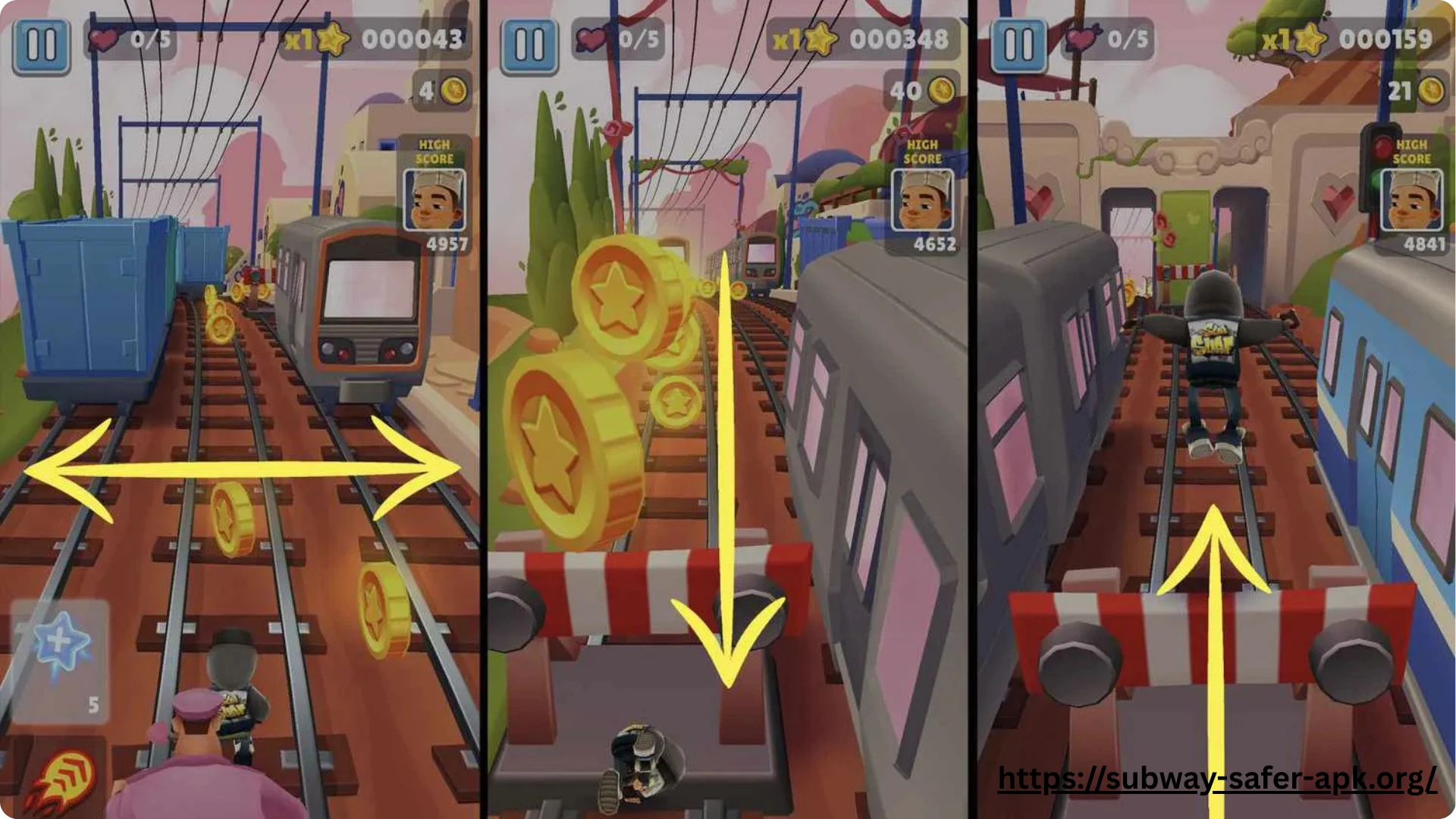
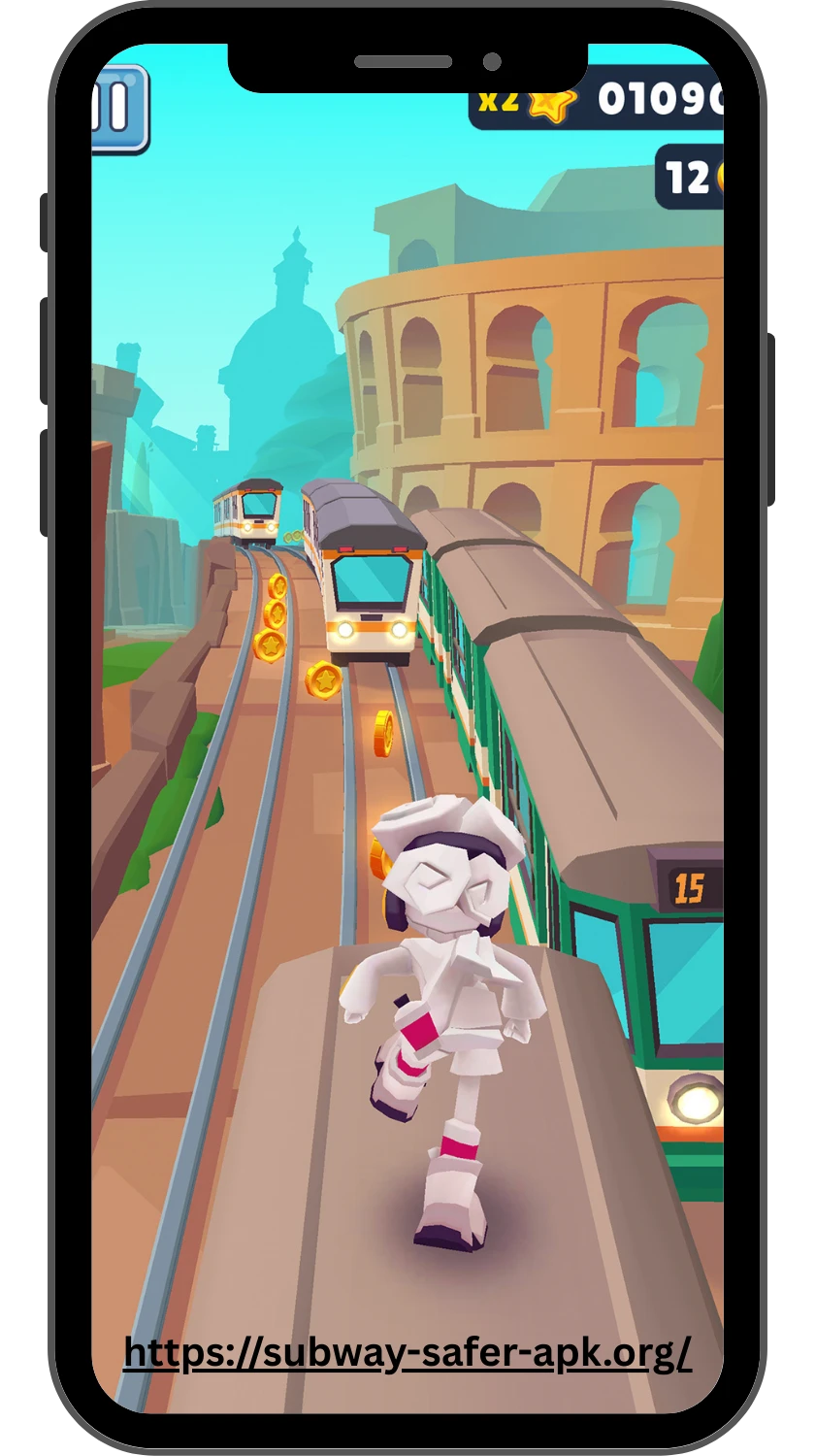
Play Subway Surfers online and jump straight into the fast-paced endless runner without spending time learning complicated controls. The basic idea is simple: guide your character along the railway tracks, switch between lanes, jump over obstacles, roll under barriers, and collect coins while avoiding trains. As the run continues, the pace becomes harder to manage, so quick reactions and good timing become increasingly important.
This page is designed to help you understand what to expect when playing Subway Surfers online. You can learn the basic controls, understand the main objective, and get familiar with the features that make each run more interesting. If you are new to the game, start with the basics and build your timing gradually. If you already know the game, use the sections below to find the information you need and get back into a run quickly.
Where to Play Subway Surfers Online Safely
If you want to play Subway Surfers in a browser, choose a platform that clearly identifies the game and its developer rather than downloading files from an unknown site. The safest options are established game platforms that provide a direct browser version or the official mobile app stores for Android and iOS.
- Official Subway Surfers app for Android through Google Play
- Official Subway Surfers app for iPhone and iPad through the App Store
- Poki, which currently offers Subway Surfers as a browser-playable game on desktop, phone, and tablet
Before starting a browser version, check that the page names SYBO as the developer and does not ask you to install an unrelated file, extension, or executable just to play. Poki currently lists Subway Surfers by SYBO and supports browser play without requiring a download.
If a site promises a modified version, asks you to disable security settings, or pushes an unexpected download, it is better to leave the page. A normal browser game should not require you to bypass your device’s security protections just to start playing.
Official Browser Version vs Third-Party Hosts

The main difference is where the game is hosted and how confidently you can verify its source. An established platform may embed or provide access to a browser-playable version, while third-party sites can vary in how they obtain, present, or modify the game.
| Option | What to Expect | What to Check |
|---|---|---|
| Official mobile version | The standard Subway Surfers app from the game’s official distribution channels | Verify the developer and use the official app store |
| Established browser platform | A browser-based version that can be played without installing the mobile app | Check the game’s listing, developer information, and whether a download is required |
| Unknown third-party host | A site offering its own embedded or hosted version | Avoid unexpected downloads, extensions, redirects, or requests to disable security features |
For browser play, the key issue is not simply whether a site has a Subway Surfers page. You should also check who provides the game and what the site asks you to do before playing. An established platform such as Poki currently identifies SYBO as the developer and offers the game directly in the browser.
Third-party hosts are not automatically unsafe, but they deserve more caution because the source and distribution method may be less clear. If a page requires an unfamiliar installer or makes unusual security requests, use an official app-store version or a well-established browser platform instead.
Keyboard and Browser Requirements

Playing Subway Surfers in a browser does not require a complicated setup. On a desktop or laptop, you mainly need a working keyboard, a modern web browser, and a stable internet connection for the browser version.
- Use a modern, up-to-date web browser such as Chrome, Edge, Firefox, or Safari.
- Make sure your keyboard is working properly, especially the arrow keys and spacebar.
- Use the left and right arrow keys to change lanes.
- Use the up arrow to jump and the down arrow to roll.
- Press the spacebar to activate the hoverboard.
- Keep a stable internet connection while playing the browser version.
- On phones and tablets, use swipe gestures instead of keyboard controls.
You do not need a gaming keyboard or special controller for normal browser play. A standard keyboard is enough for the basic controls. If the game feels slow or does not load correctly, first check your browser, internet connection, and whether other tabs or applications are using significant system resources.
Free Play, Saves, and Progress Limits
Subway Surfers can be played without paying an upfront purchase price, but what happens to your progress can depend on how you access the game. The browser version is designed for quick play, while progress, purchases, and other account-related data may not work the same way across different websites or platforms.
If you are playing through a third-party browser host, do not assume that your coins, characters, missions, or other progress will automatically carry over to the official mobile app. A browser session may also use different storage or save systems, so clearing browser data or changing devices can affect locally stored progress. For anything you do not want to lose, use the official version and follow its available account or cloud-save options rather than relying on an unknown host.
The safest approach is to treat an online browser version as a convenient way to play and the official app as the place to manage long-term game progress. This distinction is especially important before spending money or investing significant time in unlocking in-game content.
Common Browser Problems
Most browser problems with Subway Surfers come from loading issues, outdated browser software, connection problems, or excessive background activity. Before assuming the game itself is broken, try these common fixes:
- Refresh the game page if it does not load correctly.
- Check your internet connection if the game keeps buffering or fails to start.
- Update your browser if the page behaves unexpectedly.
- Close unnecessary tabs and applications if gameplay feels slow or unresponsive.
- Clear the browser cache if an old or damaged cached file is interfering with loading.
- Try another supported browser if the problem continues.
- Make sure your browser allows the page to run the required game content.
- Restart the browser after making changes and load the game again.
If the game works normally on another browser or device, the problem is more likely related to your original browser, its settings, or available system resources. Avoid downloading random fixes or browser extensions that claim to repair the game. A simple browser refresh, update, or cache cleanup is usually a better first step.
FAQ
Final Thoughts
Playing Subway Surfers online is a convenient way to get into a quick run, especially when you do not want to install a mobile app. The basic gameplay is easy to understand, but your experience can vary depending on the browser platform, device, and controls you use. Choosing a reputable host and checking what happens to saved progress can help you avoid unnecessary problems later.
For casual browser play, focus on the essentials first. Make sure the game loads correctly, your controls respond properly, and you know how to restart or leave the session safely. If you care about long-term progress, purchases, or features tied to the official mobile version, the official app remains the more appropriate option.
Use this page as a starting point for browser gameplay, troubleshooting, and platform questions. If you are ready to play, the next step is simple: choose a trustworthy platform, check the controls, and see how far you can run without hitting the next train.